
Let the light bring the photograph back.
Turn a photograph into a keepsake that reveals the picture when you light it.
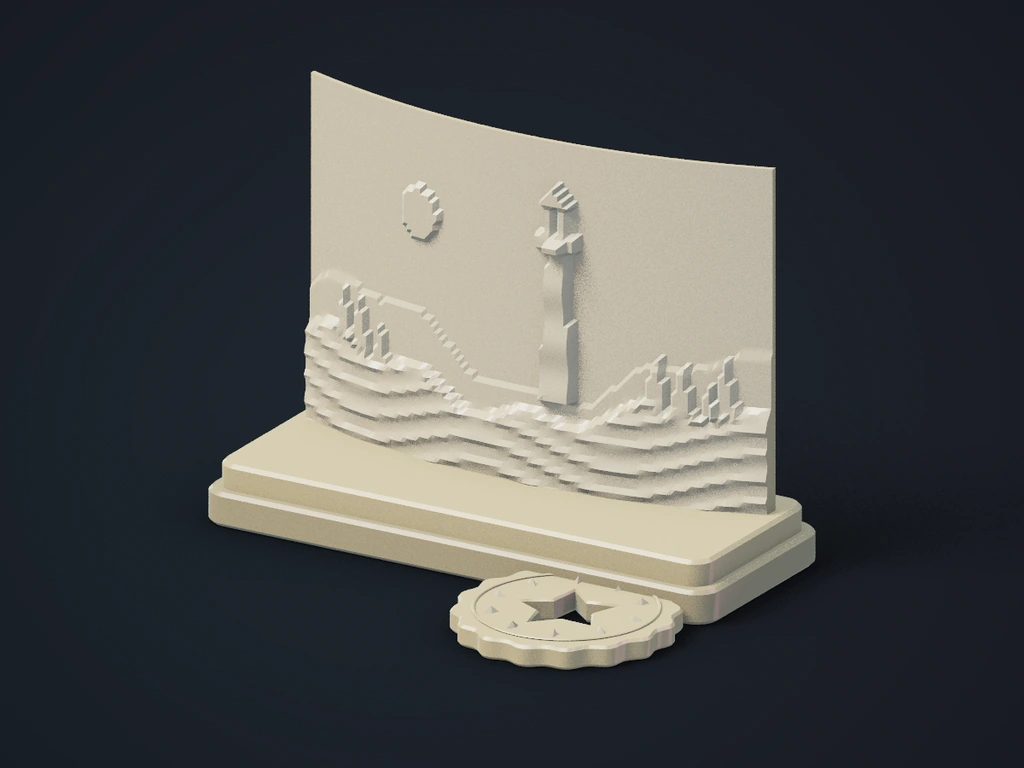
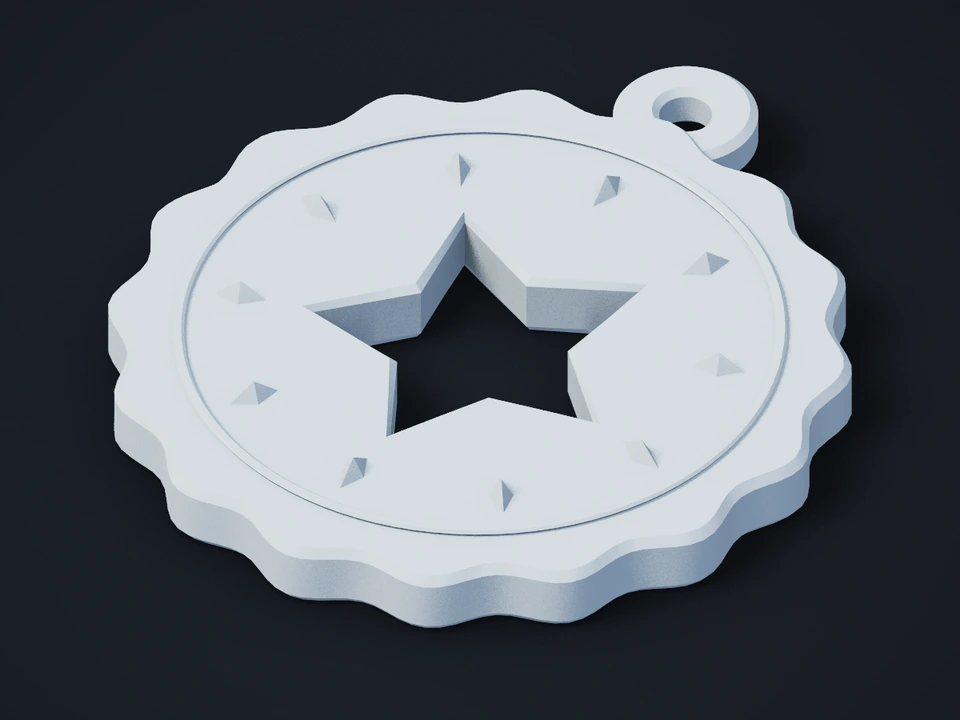
Example project
A portrait for someone’s first Christmas in a new home
Choose a close-up with faces separated from the background. Mark the window or shelf where the gift will live before choosing a hanging ornament or a standing panel.
Check it in the real space
Crop a copy of the photo to the intended shape and view it at the finished width on your phone. Check the eyes and outline before adding the name or date.
Choose the North Star Ornament for a name or year. Start in LumiForge when the photograph itself is the centerpiece.
See the North Star OrnamentWhere are you starting?
Start with this decision
Pick a photo with a clear subject. A face close to the camera or a recognizable skyline is easier to read at ornament size than a crowded group far away.
Try the project toolWhat you can make
- Personalized Christmas ornaments from family photos
- Pet portraits and memorial keepsakes
- Coastal scenes for holiday windows
- Small gift batches with individual names or dates
Read the studio’s approach
Turn a family portrait, a pet’s profile or a favorite stretch of coast into a LumiForge™ keepsake. Start with your own photograph, compare the surface with the warm backlight on and off, and choose a size that works where the recipient will actually hang it.
Turn your photograph into a lithophane
Upload your photo or use the lighthouse study. Adjust the relief and rotate your ornament under a simulated warm light before downloading the STL.
Why a lithophane portrait appears when you turn on the light
Questions before you start
What kind of photo makes a readable Christmas lithophane?
Choose a sharp subject whose outline still stands apart when you view the photo in grayscale. A close portrait, a pet against a plain wall or a lighthouse against open sky all offer recognizable shapes. Inspect the crop at the intended ornament size before approving the image.
How does a 3D-printed portrait appear when lit?
A conventional monochrome lithophane puts less translucent material in bright image regions and more in dark ones. A light behind the relief reveals the tonal pattern. Its unlit face shows the raised surface, so compare both appearances if the ornament will hang on a tree.
Which files can I preview in LumiForge™?
Choose a JPEG, PNG or WebP image and check that its orientation and crop are correct. Set the width and maximum thickness, rotate the relief, and switch the warm-light preview on or off. You can download the generated STL or send a brief to the studio for review.
Can a name, date or dedication be part of an ornament?
For custom lettering, write the exact words in the studio brief and identify the face, rim or base where they should appear. Include capitalization, accents and punctuation. A separate proof of the inscription gives the person gifting it a chance to check every character.
Does the preview show the exact brightness of the finished gift?
The preview helps compare crops and relief settings. Actual brightness depends on the material, printed thickness, lamp, spacing and surrounding light. For a matching batch or a particular display, approve a physical sample with the intended cool-running LED behind it.
Can I request ornaments for a specific holiday event?
Include quantity, destination, delivery date and the last date you can review a proof. Tell the studio whether every copy uses the same photo or each person receives a different design. Production and shipping dates follow the studio’s review of that scope.
When does ForgeLab receive my photo?
Trying an image in the browser creates a local preview. To request a personal quote, complete the studio review form and authorize sharing the photo and specifications. Use an image you have permission to share, especially when making a batch for other households.